


Procedure #1:
- Login to the admin panel.
- Navigate to:
Catalog > Attributes > Manage Attributes
using the top navigation bar. - Find the attribute “manufacturer” and click on it.
- In the left side navigation, click on the “Manage Label/Options” tab.
- In the Manage Options section, click on the “Add option” button
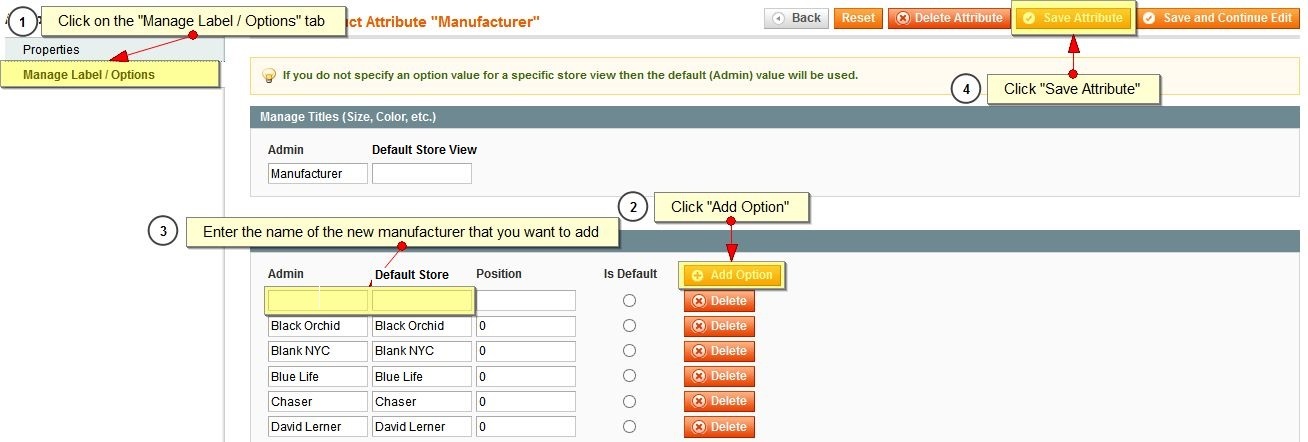
- Enter the name of the new manufacturer that you want to add on both the “Admin” and “Default Store View” text fields.
- Click the “Save Attribute” button to save the changes.
Procedure #2:
- Navigate to:
Splash > Manage Splash Pages
using the top navigation bar.
- Click the “Add New Page” button located at the top, right corner.

- In the “Page Information” tab, enter the new name for the manufacturer into the “Name” column.

- In the “Attributes” tab, select “Manufacturer” from the drop down.
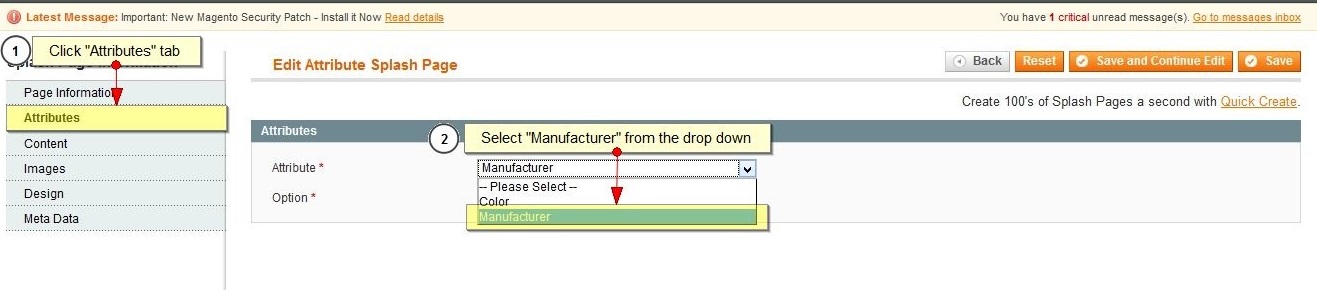
- In the Option field, select the manufacturer you created (as per Procedure #1).
- In the Content tab, enter the content for the manufacturer.
- In the Images tab, click on the “Banner” browse button to add image for the manufacturer (brand).

- In the Design tab, choose “Yes” in the Include in Navigation Menu field if this manufacturer needs to be displayed in the main navigation and select the “2 columns with right bar” in the Page Layout field.
- Click the “Save” button.