


To add a new portfolio, follow these 2 steps:
- Create a new photo gallery block
- Call the photo gallery block
Procedure I: Create a new photo gallery block
Please follow these steps to create a new photo gallery block:
- Log in to website admin panel
- Navigate to FME -> Photo gallery -> Manage Gallery Blocks
- Click on the “Add Photo gallery Block” button on the top right corner
- Enter the title of the photo galley block
- Enter the unique ID(identifier) for the photo gallery block
Note: Copy this identifier value to use it while calling this photo gallery block.
Example: “sample” is the identifier in the screenshot below. It should be unique value. It can contain alphabets, and numbers without space in between.
Here is couple of examples for identifier: sample1, sample2
- Choose the status as “Enabled” from the dropdown
- On the editor (WYSIWYG – What You See Is What You Get) appears, enter the content for the photo gallery. Refer the below screenshot
- To add in images to the photo gallery, click on “Gallery Images” on the left side tab.
- Click on “Browse Files…” button on the right side bottom. Once the popup appears, choose images from your computer.
- Click on “Upload Files” button on the right side bottom.
- Click on “Save Photo gallery Block” button.
Procedure II: Call the photo gallery block
Please follow these steps to call the photo gallery either on a category or a page:
To call on a category:
- Create a new category or go to the existing category
- Go to the Custom Design tab
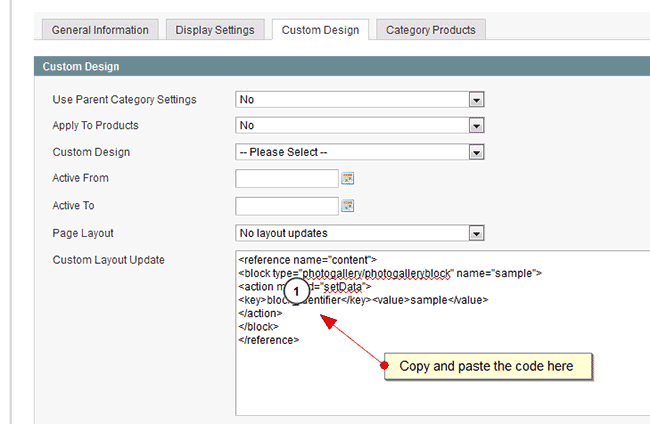
- For the Custom Layout Update text box, copy and paste the code below
block_identifiersample
- After you paste the code, CHANGE the name (sample) and value (sample) to the identifier that you have used when creating portfolio. Refer to this screenshot:
- To show it on the page, follow the instructions below:
- Create a new page or go to the existing page.
- Click on the Design option then on the left panel Scroll down to the Custom Design section.
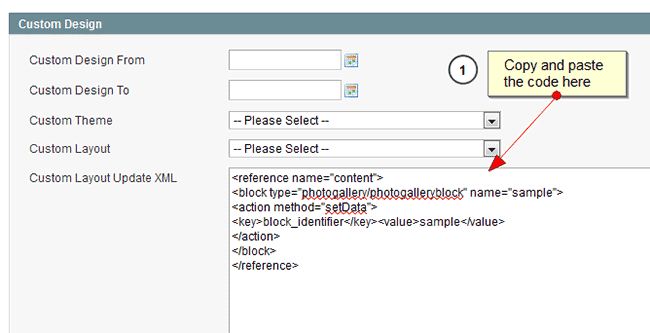
- For the Custom Layout Update XML text box, copy and paste the code below:
block_identifiersample
After you paste the code, CHANGE the name (sample) and value (sample) to the identifier that you have used when creating a portfolio.
You are done.